If your goal is pure performance, the best settings for high fps in cs2 are the ones that cut visual load without making the game harder to read. that means Fullscreen mode, the highest refresh rate your monitor supports, v-sync off, motion blur off, multicore rendering on, and most advanced graphics settings set to low or disabled. That same overall formula shows up again and again in popular cs2 optimization guides because it gives the best shot at smoother gameplay and lower input delay.
The important thing to understand is that “best” does not always mean “lowest everything.” Some settings can be pushed slightly higher if you still want clean visibility, but when the priority is max fps, simpler visuals usually win. Many guides also point out that anti-aliasing is one of the first places to cut if your frame rate is unstable, while settings like v-sync and motion blur should stay off for competitive play.
Best cs2 settings for high fps
use these as your baseline:
- Display mode: Fullscreen
- Refresh rate: highest available
- Laptop power savings: disabled
- Boost player contrast: enabled
- Wait for vertical sync: disabled
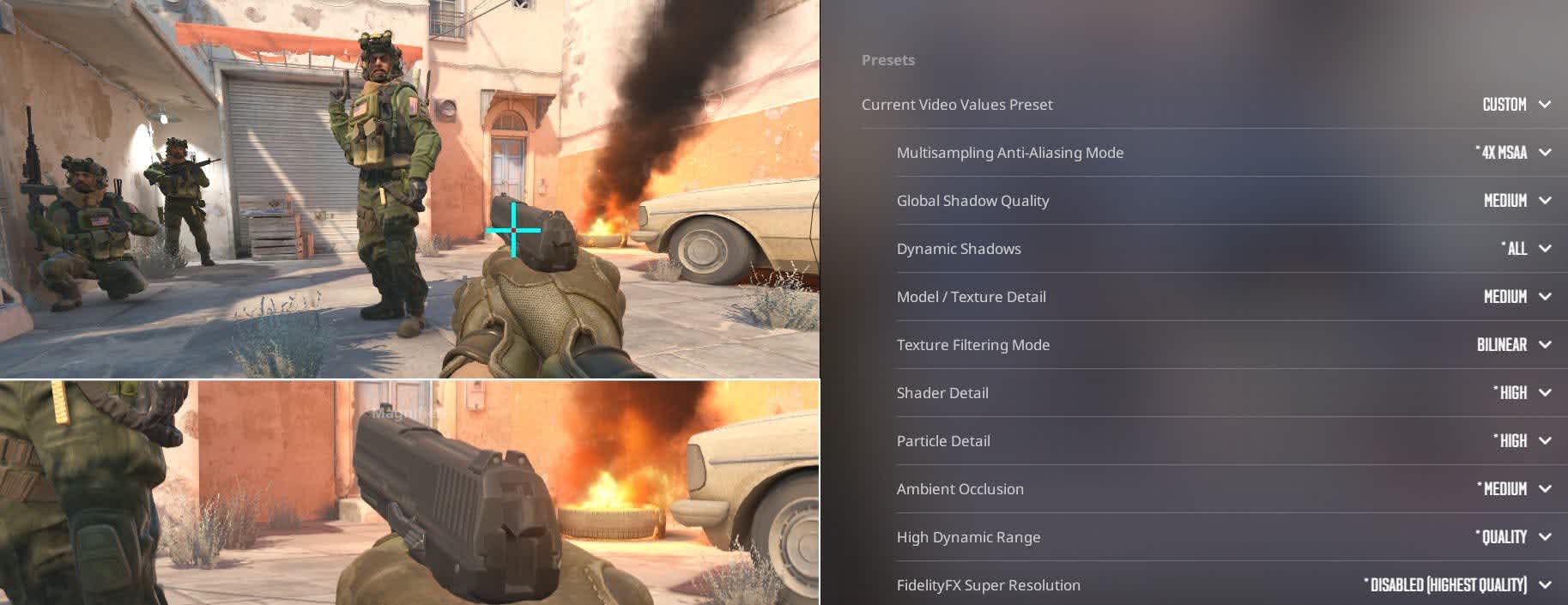
- Current video values preset: custom
- Multisampling anti-aliasing mode: none or 2x msaa if you need a cleaner image
- Global shadow quality: low
- Dynamic shadows: all or reduced, depending on how low you want to go
- Model / texture detail: low
- Texture filtering mode: bilinear
- Shader detail: low
- Particle detail: low
- Ambient occlusion: disabled
- High dynamic range: performance or disabled
- Fidelityfx super resolution: disabled unless you need the extra fps badly
- Nvidia reflex low latency: enabled
- Motion blur: disabled
- Triple-monitor mode: disabled
- Use uber shaders: disabled
- Texture streaming: disabled
- Multicore rendering: enabled
The best resolution for more fps in cs2
Resolution has a huge impact on performance. If you want the highest possible fps, running below your monitor’s native resolution is one of the fastest ways to gain frames. Many competitive players also prefer lower resolutions because they are easier to run and can make enemy models feel larger on screen, especially on stretched settings. Recent guides still commonly recommend lower-than-native resolutions for players focused on performance over image sharpness.
A strong starting point is:
- Aspect ratio: 4:3 or 16:10 for performance-first setups
- Resolution: 1280x960 or 1280x1024 if you want the classic competitive feel
- Scaling mode: stretched or fullscreen scaling, based on preference
If you dislike the softer image, stay on 16:9 but lower the resolution. That usually gives you a better balance between fps and clarity.
Should you disable MSAA in cs2?
For max fps, yes. anti-aliasing costs performance, and several current guides still treat it as one of the first settings to lower when your fps is not where you want it. One recent dexerto guide notes that dropping from higher MSAA settings can help, while also mentioning that completely disabling it may look rougher. In practice, “none” gives the most fps, while 2x MSAA is the compromise setting if jagged edges bother you.
Best launch options for cs2 fps
Launch options will not magically double your frame rate, but they can streamline startup and remove small annoyances.
use these:
-
-novid -
-fullscreen -
+fps_max 0 -
-consoleif you use the console regularly
Keep your launch options simple. Older “magic fix” commands get recycled in a lot of forum posts, but the safest approach is to stick to options that are still widely documented in current cs2 coverage.
Extra pc tweaks that can improve cs2 performance
In-game settings matter most, but pc-side cleanup can still help. If you are chasing higher and more stable fps in cs2, make sure the game is running on the highest refresh rate available, close background apps, and keep your gpu driver and windows install clean. Broader cs2 optimization pieces still emphasize these basics because they often improve frame consistency, not just peak fps.
Focus on these first:
- use exclusive fullscreen
- enable your monitor’s max refresh rate in windows
- close browser tabs, overlays, and recording tools you do not need
- update gpu drivers
- set windows power mode to high performance
- keep steam overlay and extra background apps to a minimum
The best balance between fps and visibility
The highest fps settings are not always the easiest on the eyes. If the game becomes too blurry or harsh, raise only the settings that improve readability the most. The first place to compromise is usually anti-aliasing, then texture quality. Leave v-sync and motion blur off, and keep multicore rendering enabled. That gives you a cleaner image without throwing away too much performance.